Efficiency #8 Make it a Group
Observation on Design VectorWorks / RenderWorks How!
What: Efficiency- #8 Make it a Group
Prelude: I use group and ungroup quite often. Command-G and Command-U. Why do I feel that this Group/Ungroup methodology is helpful and efficient? I am able to collect and isolate several components for editing. In the simplified world of Edit Group I am able to make changes and go back to where I was in the drawing quite quickly. Like going into a quiet room to read and concentrate on an important document.
Some Menu selections or Tools have a different effect inside a Group. They fill the same function, its being inside the Group that makes it different. Example: you can use Select All (Command-A) inside the Edit Group mode, and you know that you are selecting only the items in the Group. Only what you intend to edit. Not geometry, for example, that is outside the view on the screen.
When you are in the Edit Group mode, Select All, then zoom Fit to Objects, is a quick way to use keyboard shortcuts to see all of this limited drawing environment, as it is now geometry that is in the view on the screen.
Changing the hierarchy (ie: what’s in front / what’s in back) is easy with Group/Ungroup. Create a Group and select the Edit Group mode. This will help to eliminates the chance of altering the 2D hierarchy, with drawing components out side the specified Group. Items that are in the Group are easy to select and change their front to back position. Command-B only sends an item to the back of a few components specific to the Group. If you design with a full size back drop for reference, such as a PDF, selecting and sending a element in the drawing To the Back could result in a miss placed component on the drawing. Send To Back, inside a group, only sends to the back of the Group.
Drawing, in a discipline that utilizes mostly 2D/3D Hybrid symbols, (Exhibits, Retail, Museums) the hierarchy in the 2D plan is important compared to a 3D View. Easy to organize / reorganize with items in compact Groups. It is a long time advantage, that filled 2D shapes, in VectorWorks, overlap and block other shapes. This, in its self, is an efficient way to draw and design. Keeping the hierarchy correct is a requirement of having 2D shape cover 2D shape.
Please Note: When I use Edit Group I have the Preferences set so that I do not see the other objects in the drawing. Look at the Drawing Preferences settings. Check or uncheck the box depending on how you would like to view the drawing as you edit in the group mode. The alternate is also a functional choice. It will keep the full drawing visible, while limiting the editing to the group. Note that this allows interaction with drawing components outside the group. You could take a component inside the Group and snap it to some other drawing shape. Select All, then zoom Fit to Objects, will work as well with the Show other objects while in editing modes.
Grouping geometry also helps the efficiency of revising a drawing. Move a Group, and several items all go for the ride. If the design has some specific relationships, I like to keep them intact by grouping them. Often this is several Groups within a Group. This creates a different process editing when there is depth to the grouping. Editing any Group is a simple double click. Exiting the Group Edit mode or buried inside several Grouped Groups is also easy. Select Top Level from the Modify menu. Your are back to the full drawing.
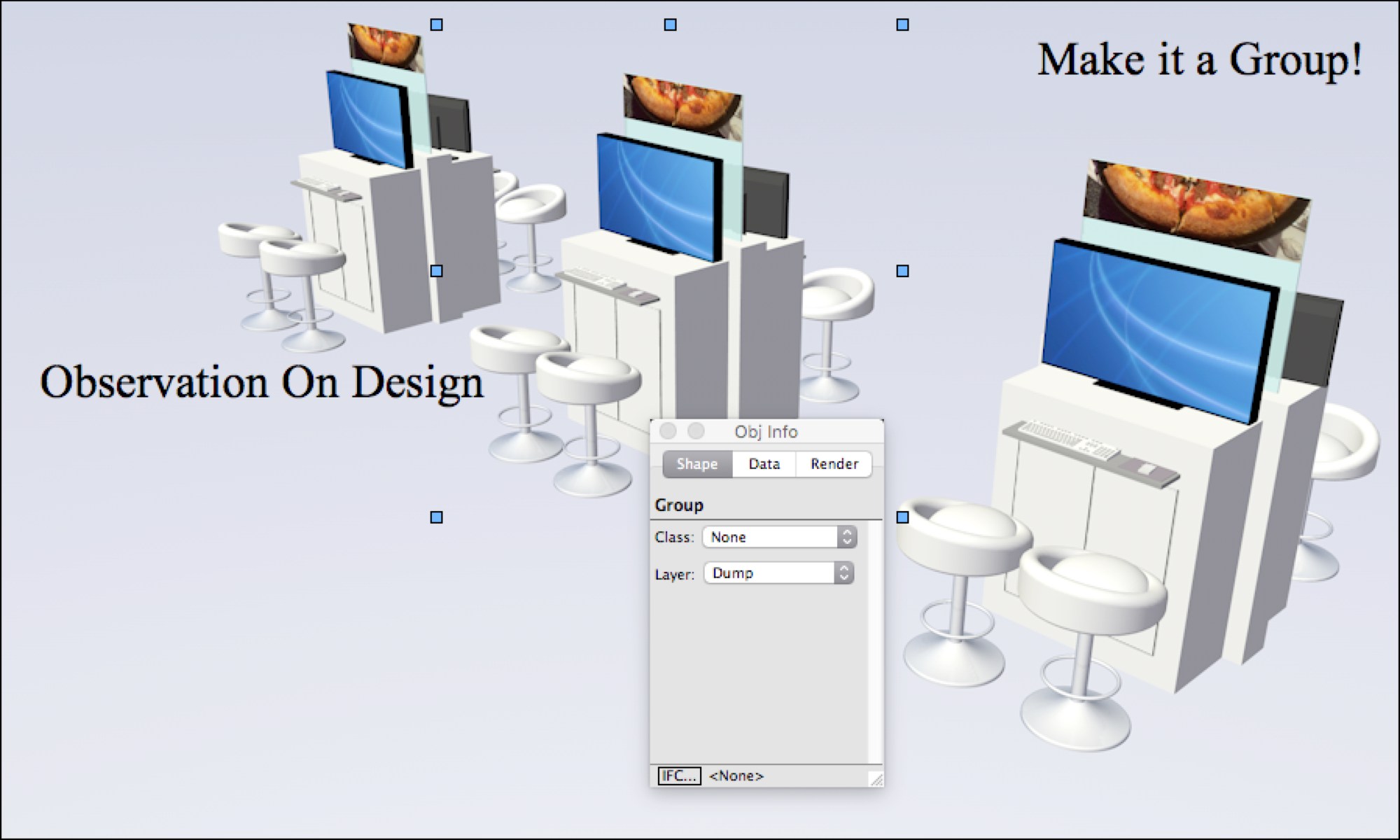
At times it is hard to edit the overall shape of some geometry. A pair of multisided Polygons. You don’t what to change the Polygon shape itself, just make the overall size smaller. Modify Scale Objects… will work. Give Grouping them a try. That is, make the Polygons a Group. Then select the Group and open the Object Info dialog Box. Change the dimensions of the Group, to change the dimensions of the pair contained in that group.
Try the same procedure with several of the same Symbols in a grid.  The geometry of the Symbol will NOT change, but the relationship of the grid will be altered when the dimensions of the Group is altered.
  A simple trick to fit a grid of Symbols into a specific space, without needing to know the relationship between the Symbols.
Remember, you can alway Ungroup!
What: Add efficiency when drawing with VectorWorks / RenderWorks
How:Use the ability to Group and Ungroup items on your drawing to your advantage.
Level:Simple, yet dependent on how your drawing stye is.
Thanks Observation on Design – Thats how I did it!
 Observation on DESIGN